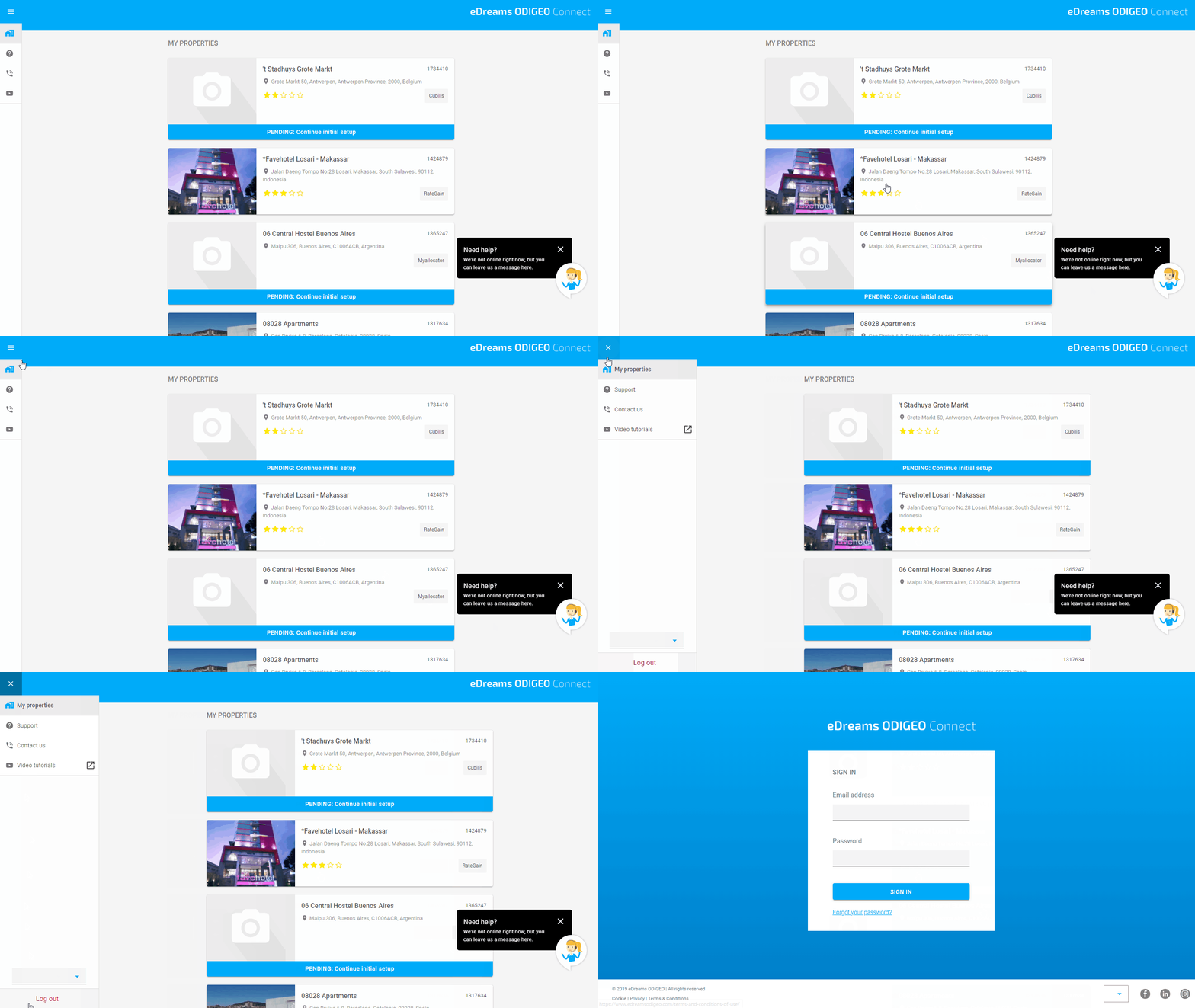
To access your Extranet just insert your email and password. Then click on SIGN IN.
LOGOUT
To log out from your Extranet, expand the menu in the upper left corner by clicking on the 3 horizontal lines. Then click on Log out.
PROPERTY OVERVIEW
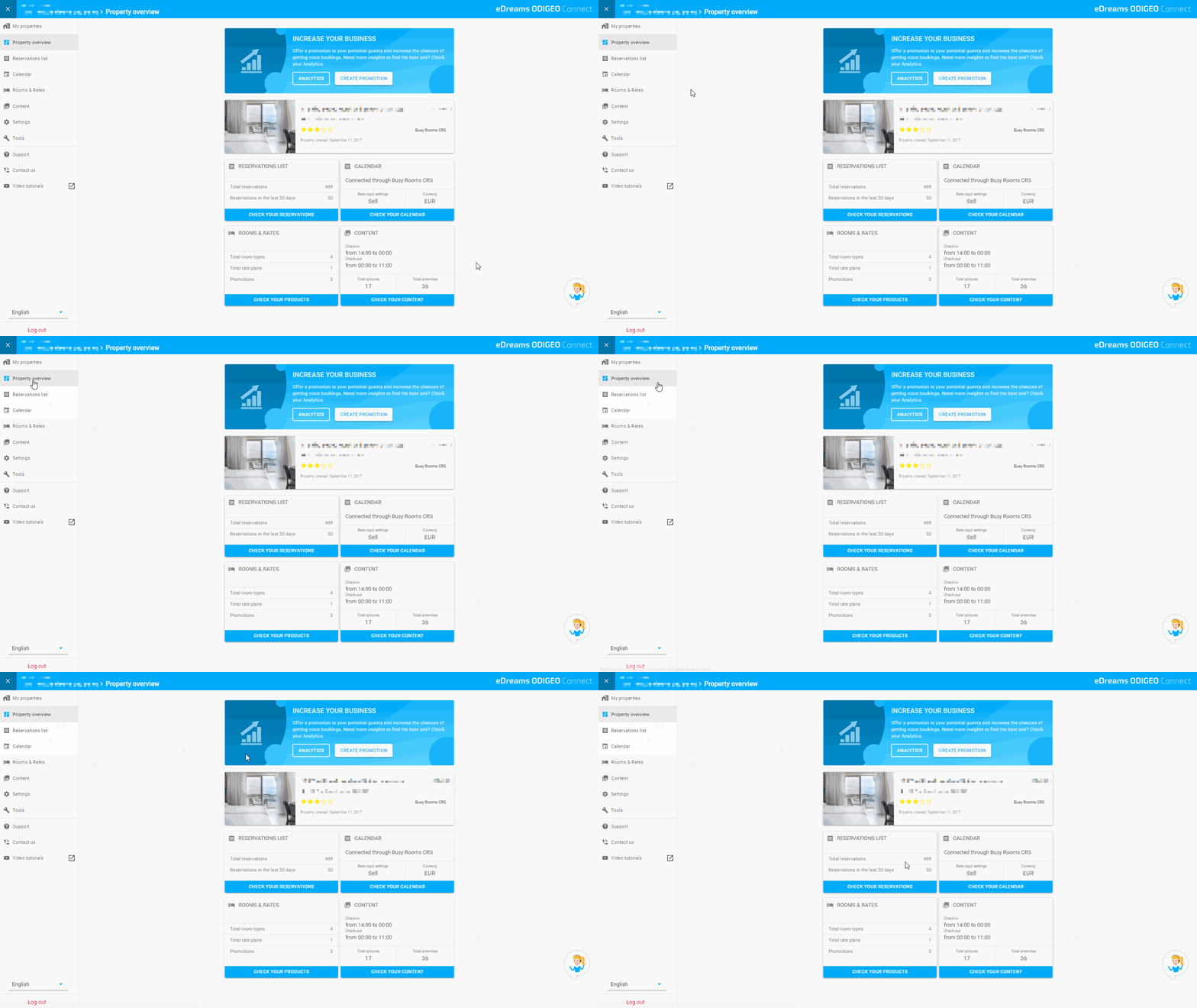
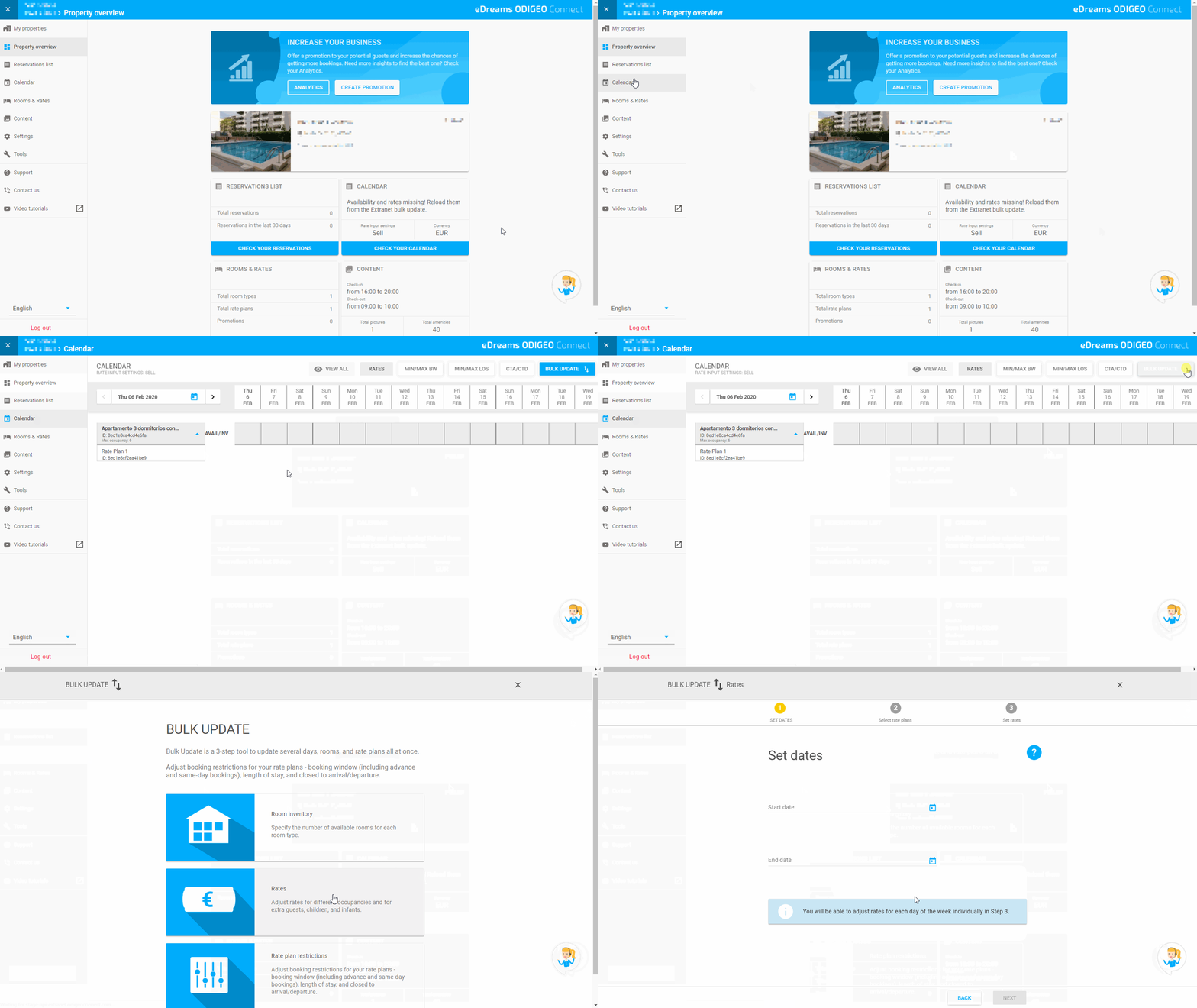
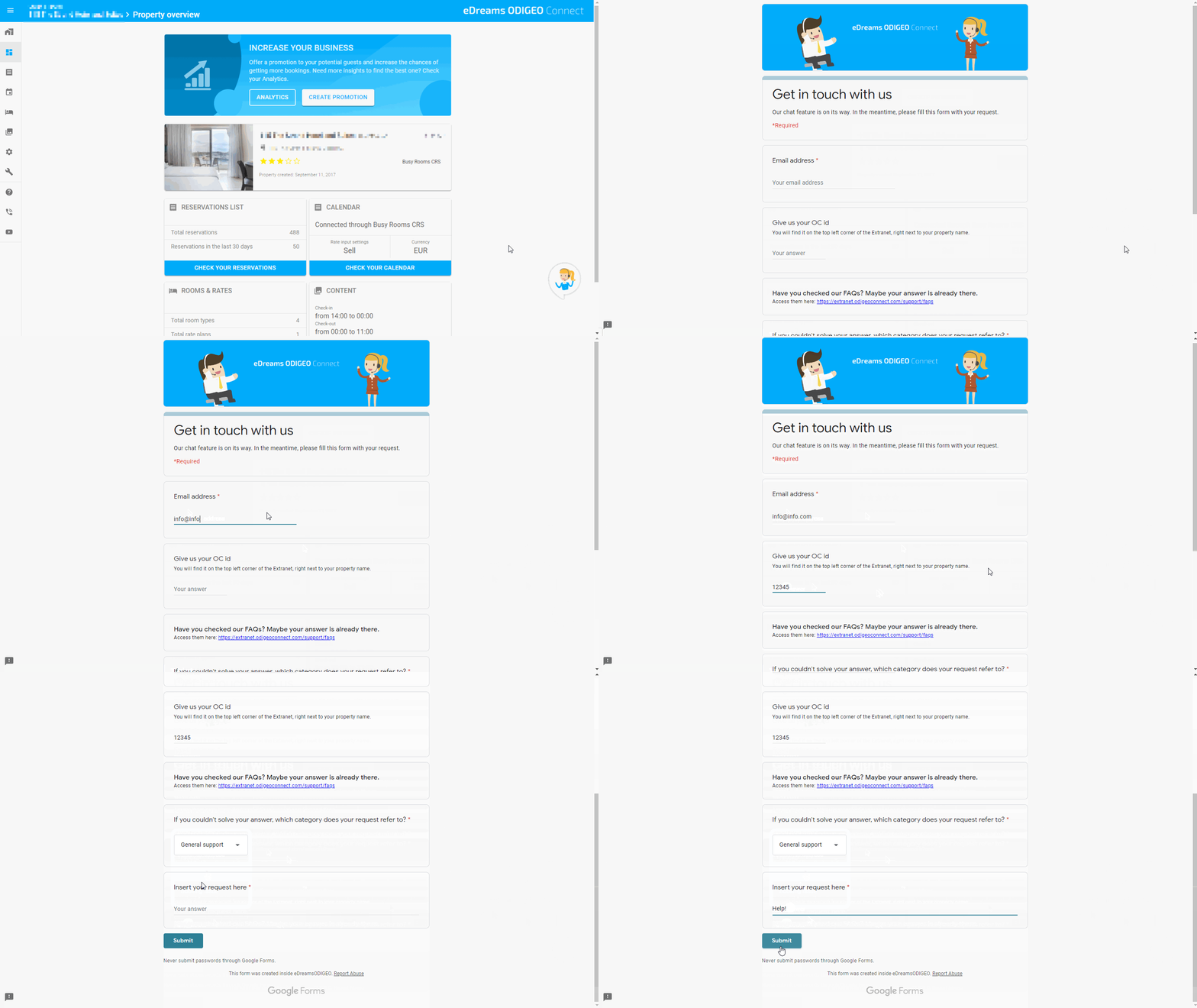
The property overview is a dashboard where you can see your property’s information at a glance and access the main features easily. You can see a summary of your reservations, calendar, room types, rate plans, promotions and content. You have also quick access to create a promotion and check your analytics.
CALENDAR
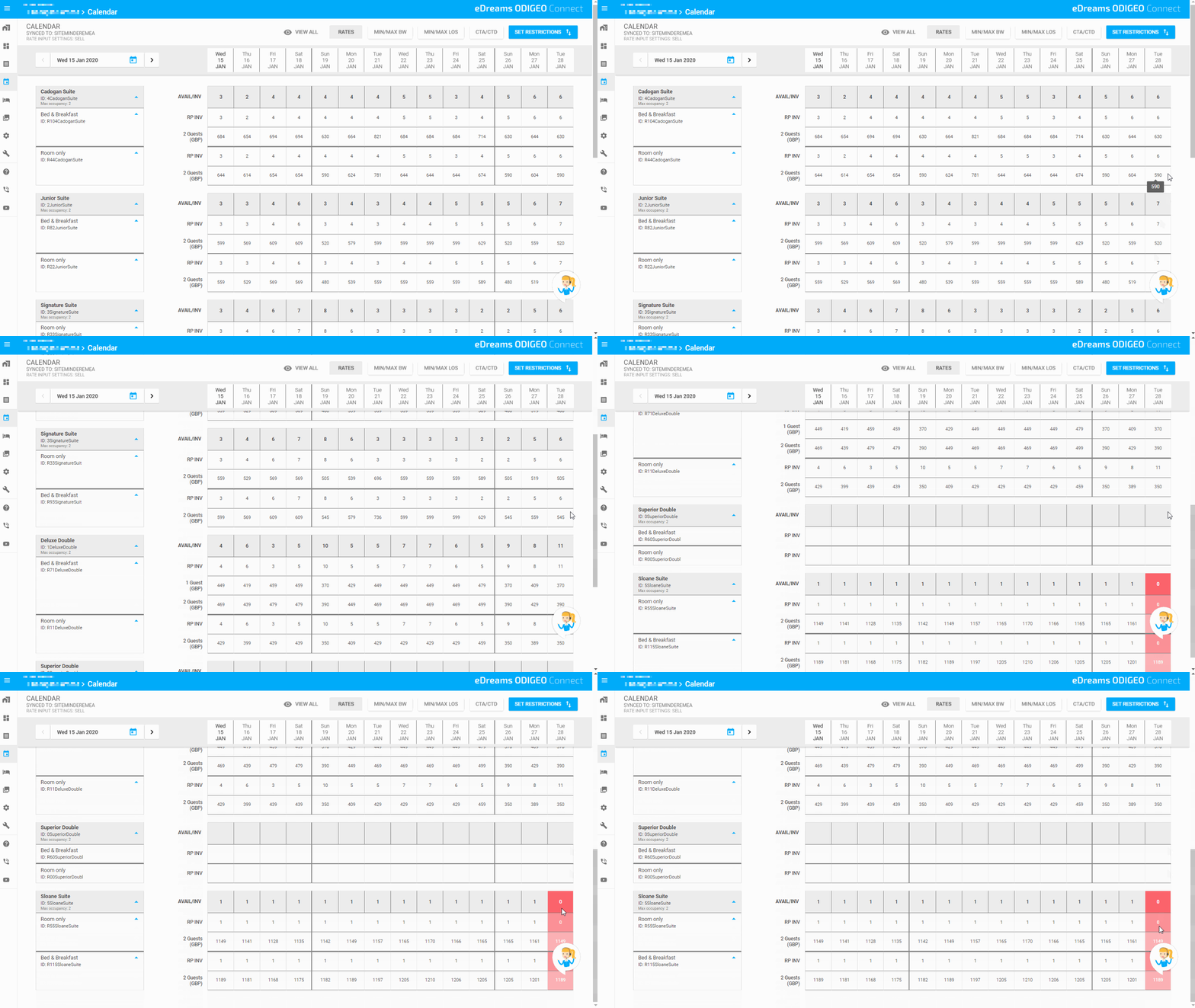
By default, your calendar shows you a 14 days window. You can navigate and change the dates by clicking on the arrows in the upper left corner. Alternatively, you can click on the date and customize it.
For every room and rate, you see the inventory count on the first row, rate plan inventory below and lastly the price per room. If a cell is in red, it means the room is not being sold at the moment.
On the top, you see different buttons. By clicking on them, besides your rates, you can check your minimum and maximum Booking Window, minimum and maximum Length Of Stay and days your property is closed to arrivals or departures.
INVENTORY
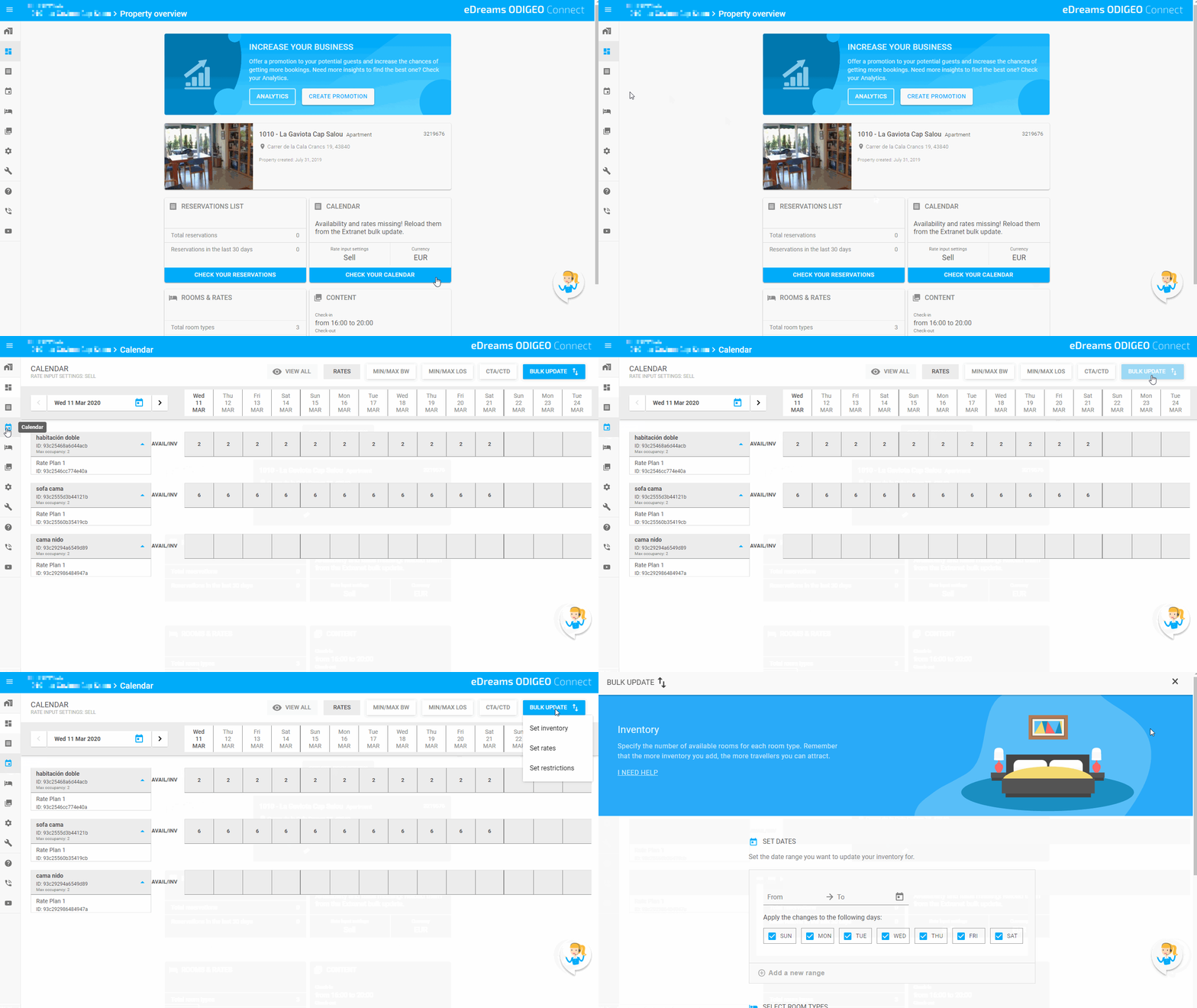
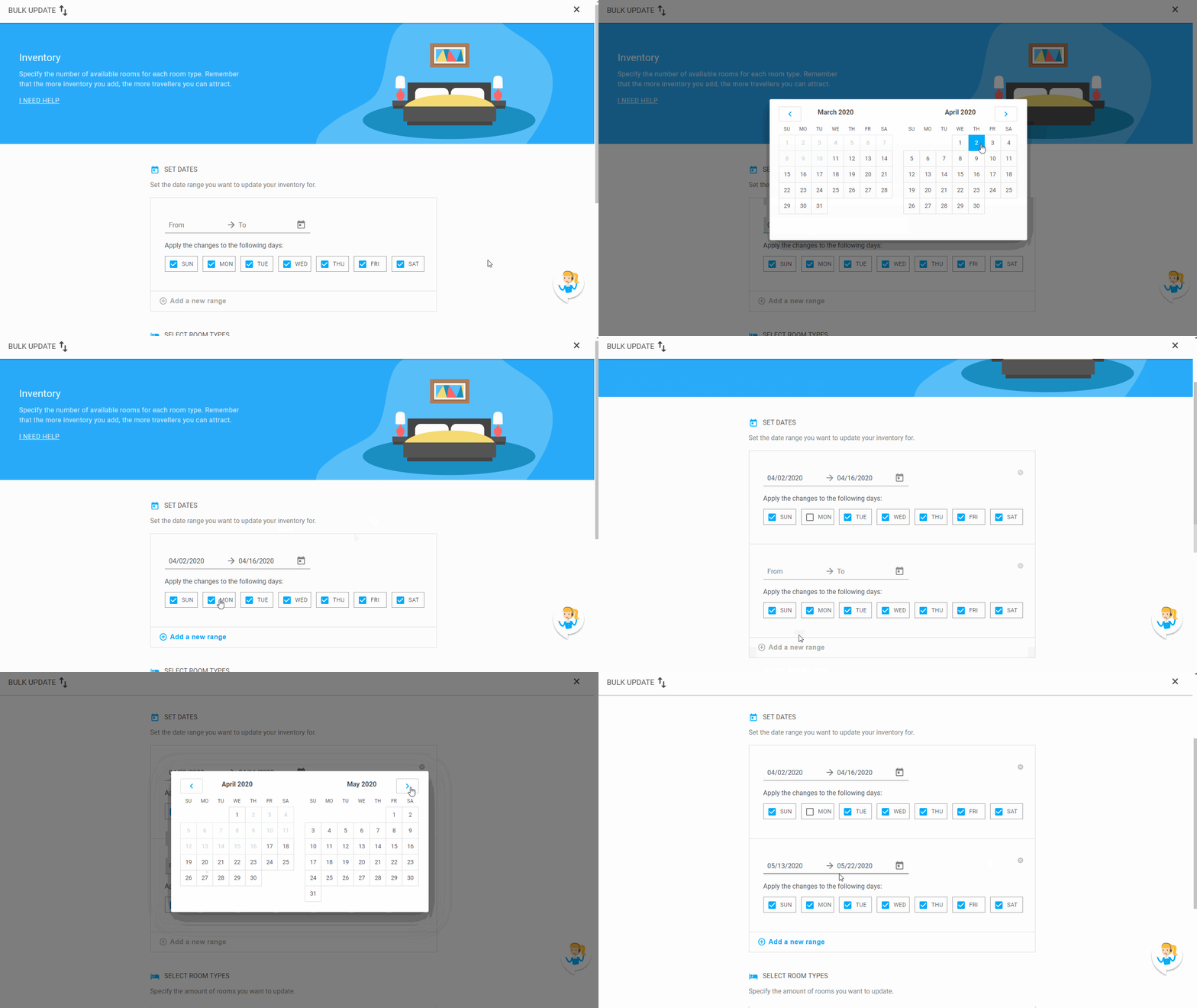
To set your inventory, click on “BULK UPDATE” in the top right of the Calendar section, and then on “Set inventory”.
You can select the range of dates up to one and a half year. Optionally, you can deselect the days you don’t want to sync. You can also add more ranges.
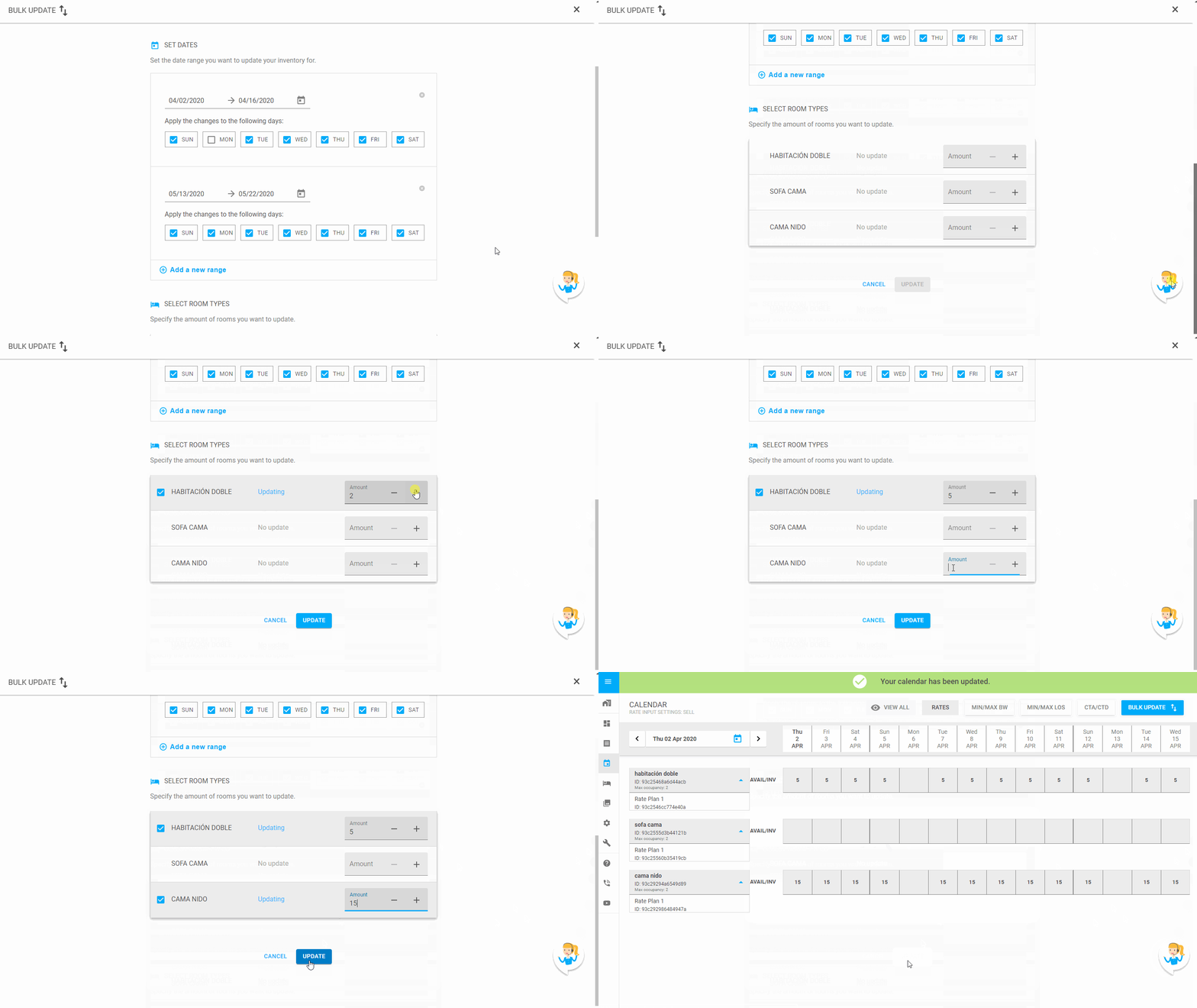
Next, you will need to select the room types. Enter the number of rooms for each room type. Once you update, your calendar will be updated with the inventory that you entered.
RATES
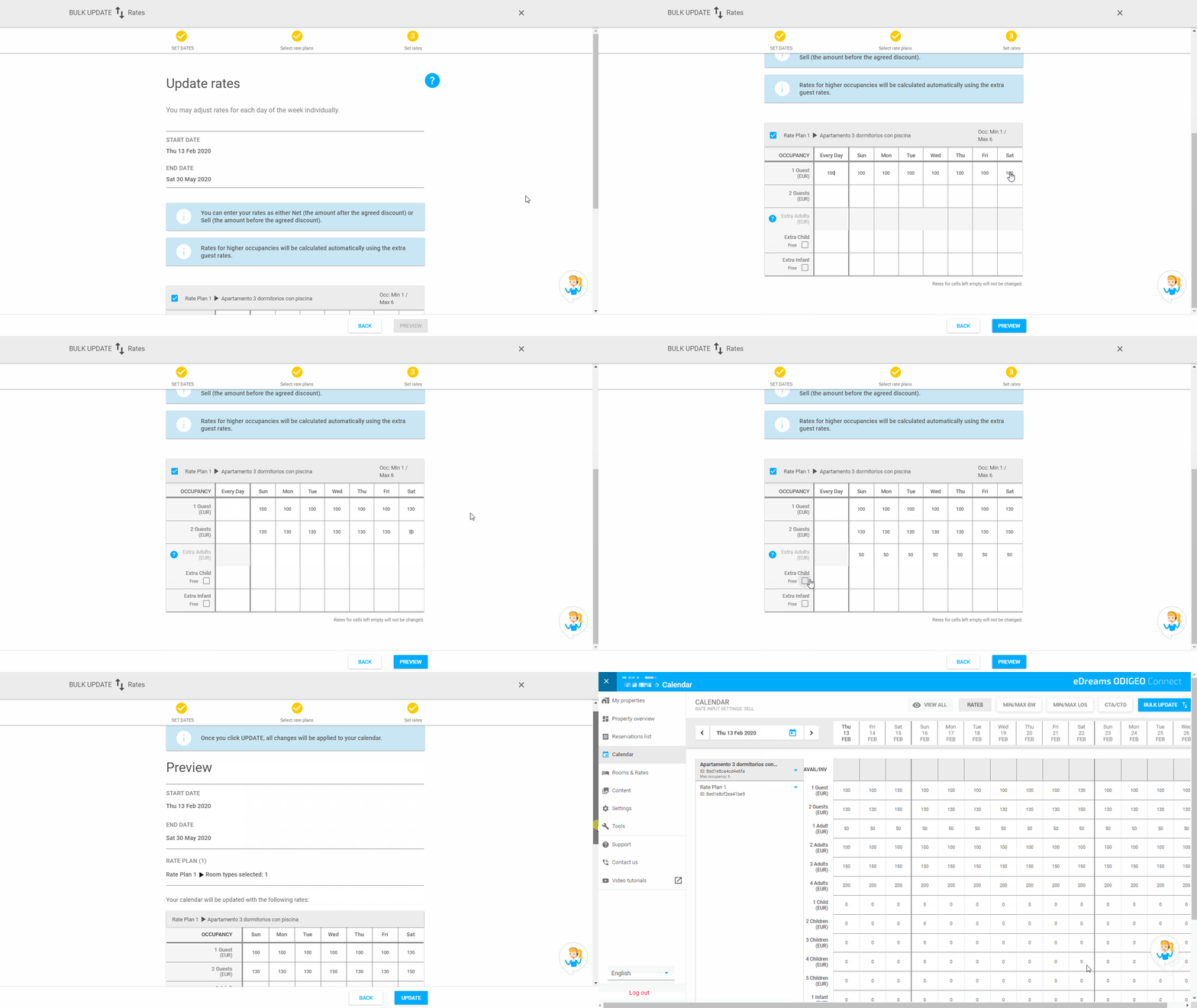
To update your rates, click on “BULK UPDATE” in the top right corner of the Calendar section, and then on “Rates”.
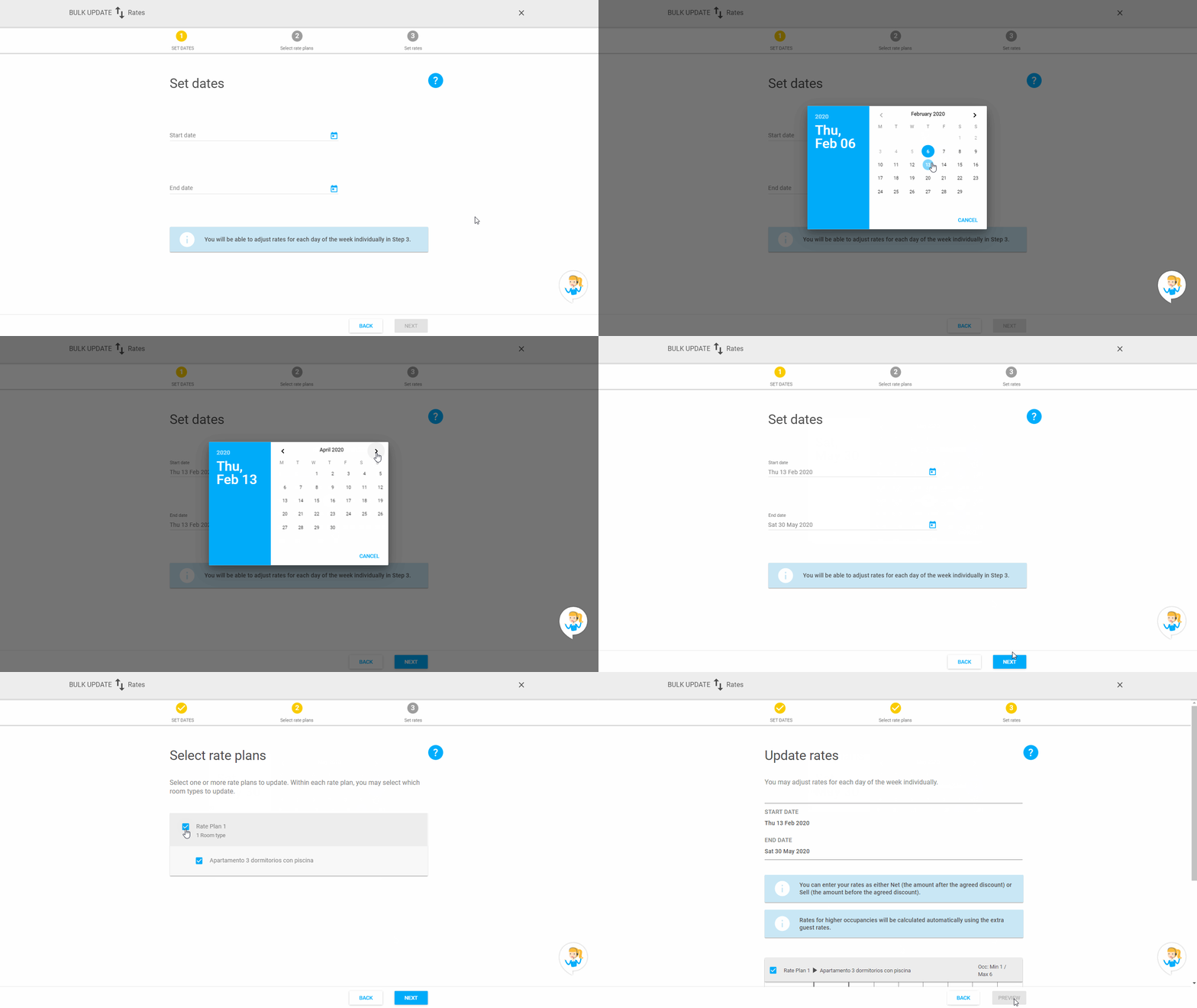
You can select the range of dates up to one and a half year. Next, you will need to select the rate plans and room types.
Enter the price per room to update. You can update rates for an entire range or select specific days of the week. Update after previewing the information. Your calendar will be updated with the rates that you entered.
Note: Please be careful when adding more than 2 guests rates per room, make sure the price represents the total price for the total guests. Ex. 1 guest = 100, 2 guests = 120, 3 guests = 140.
RESTRICTIONS
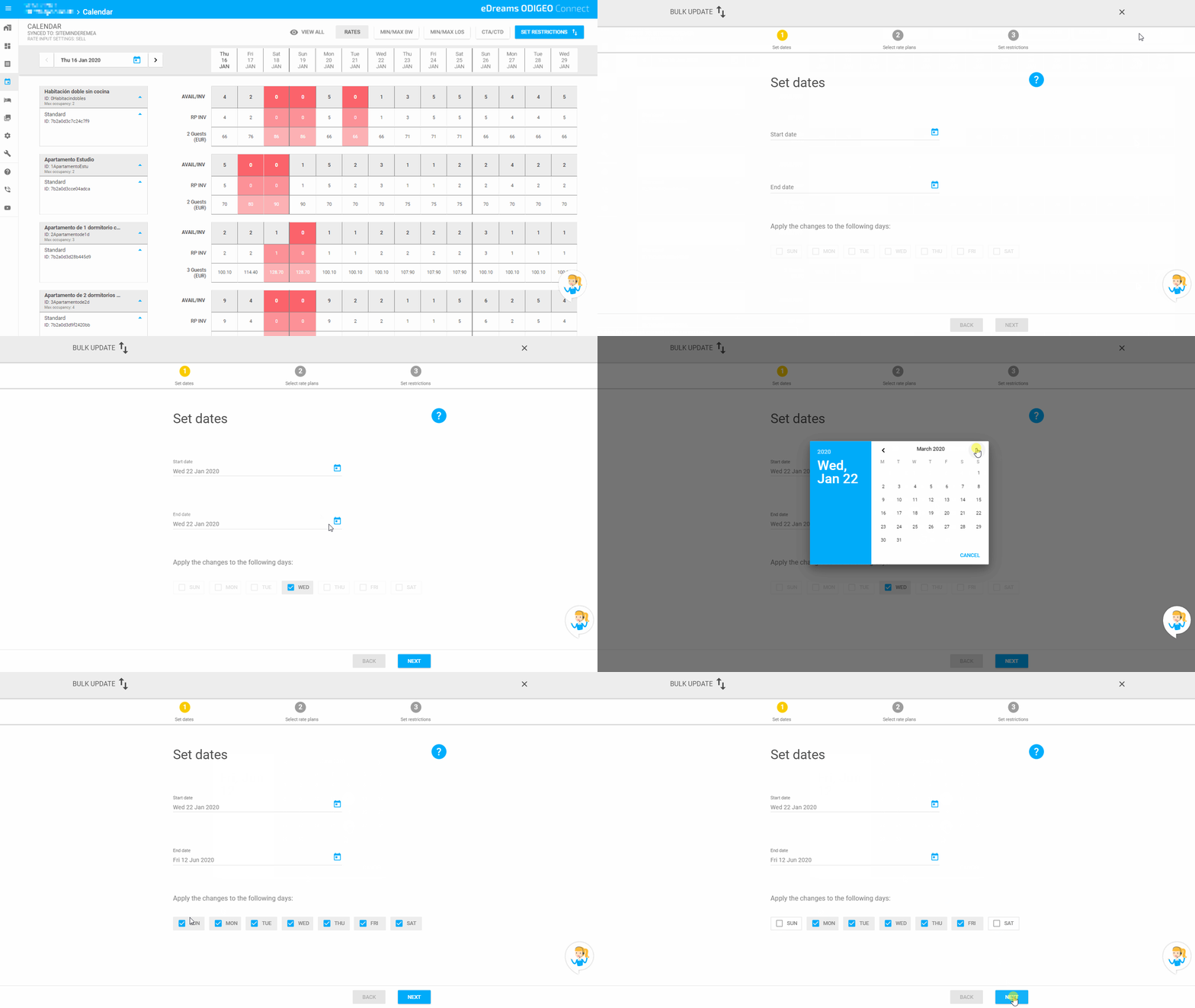
You can update your inventory by selecting the range of dates up to a year and a half. You can also deselect specific days of the week.
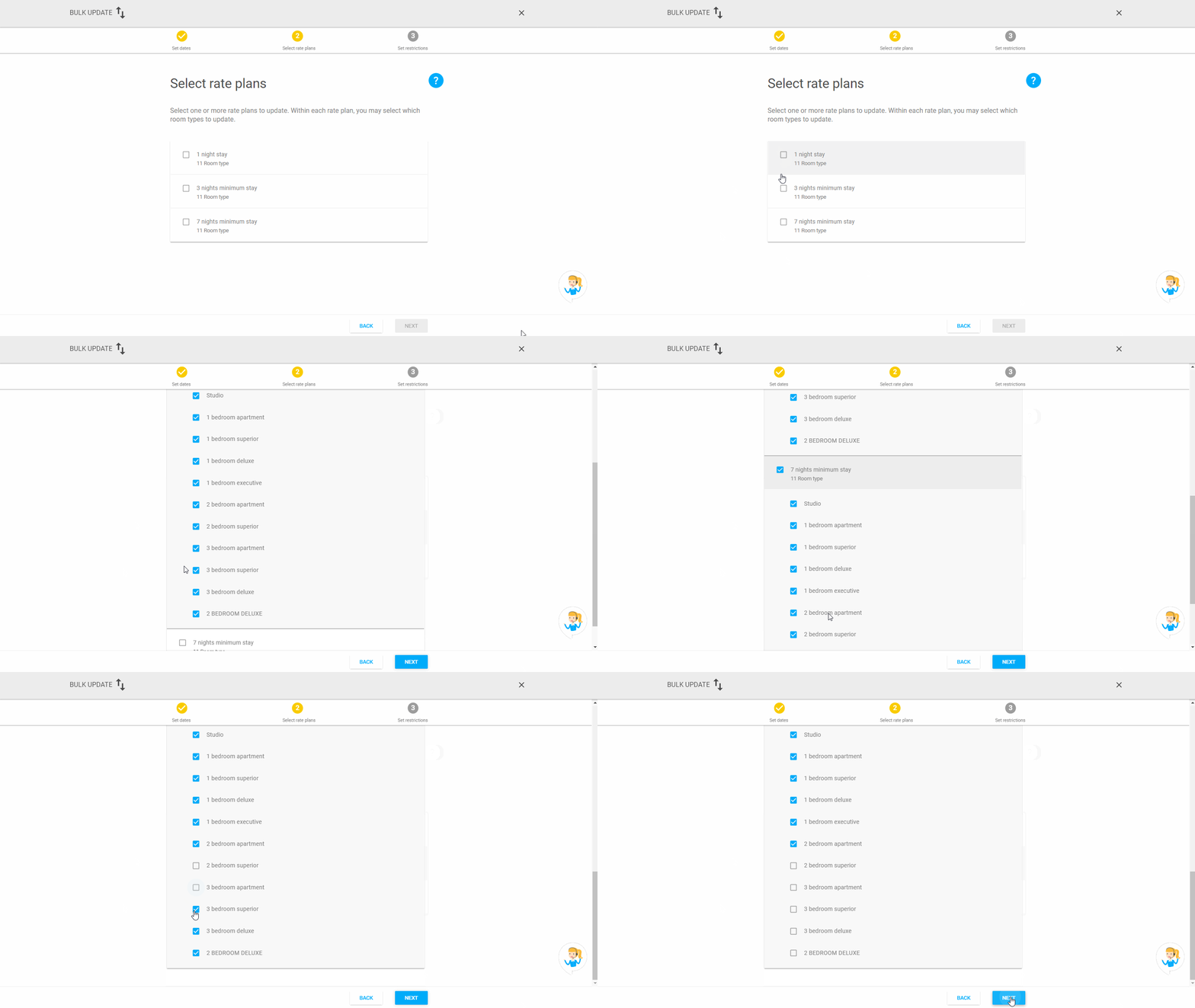
In the next step you will select the rate plans to update. In each of them, you can also update the room types linked.
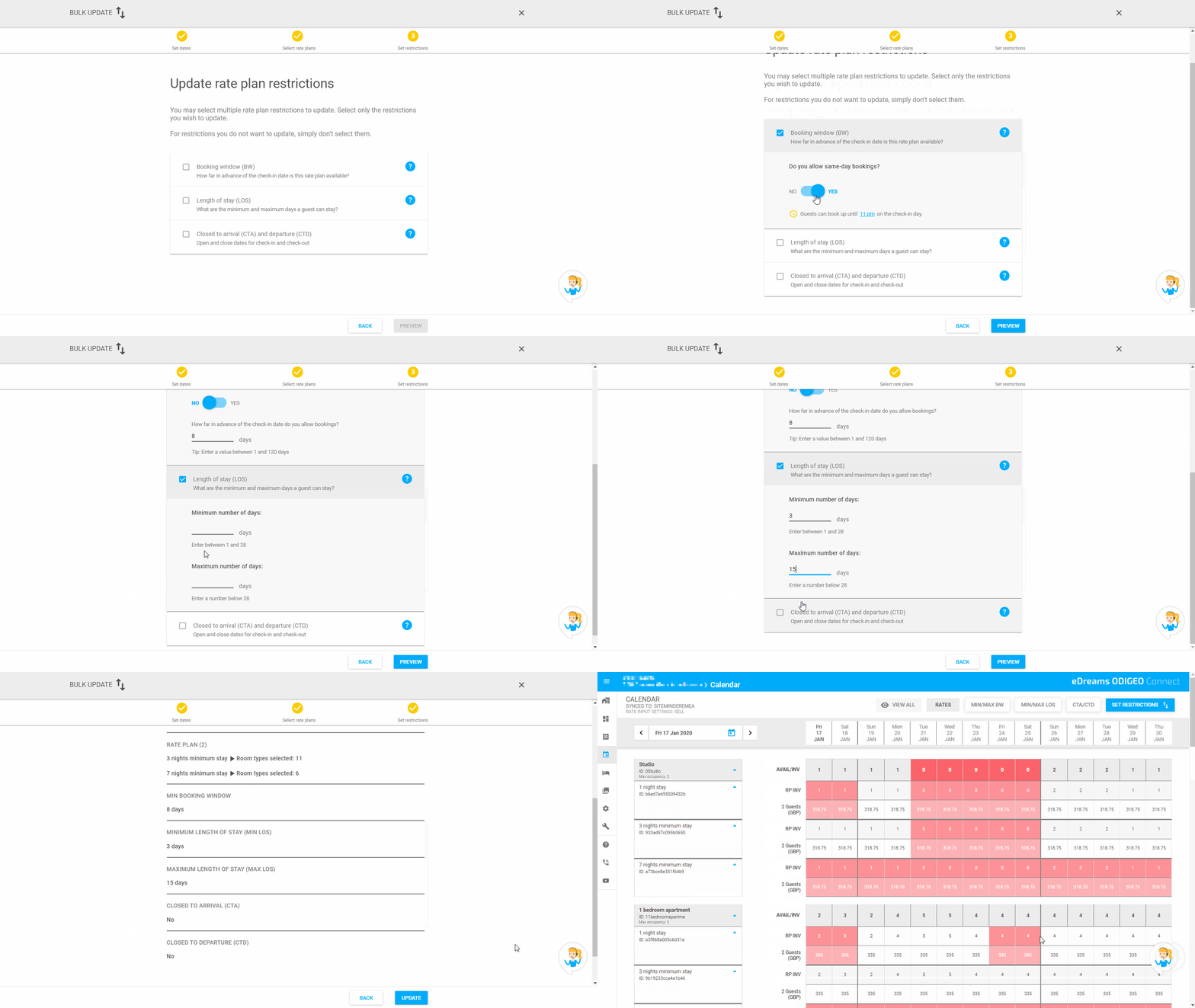
In this 3rd step, you decide which restrictions you want to apply to your selection.
RESERVATIONS LIST
You can retrieve your bookings by clicking on the Reservations list section on the left side menu, or on “CHECK YOUR RESERVATIONS” from the Property Overview. You can display them by check-in date, check-out date or booked date. You can also see the name of the first guest of that reservation.
By clicking on a guest’s name, the details of the reservation will pop-up: booking date, property name, full guests details, check-in and check-out dates, room type and rate plan, and total reservation price without discount, which is the exact amount you will have to charge.
You will also be able to see from which brand and device the reservation was done and the virtual card that you will use to charge this reservation. Please remember that this card can only be used for the room price including VAT. Other fees should be paid by the guest.
ROOM TYPES
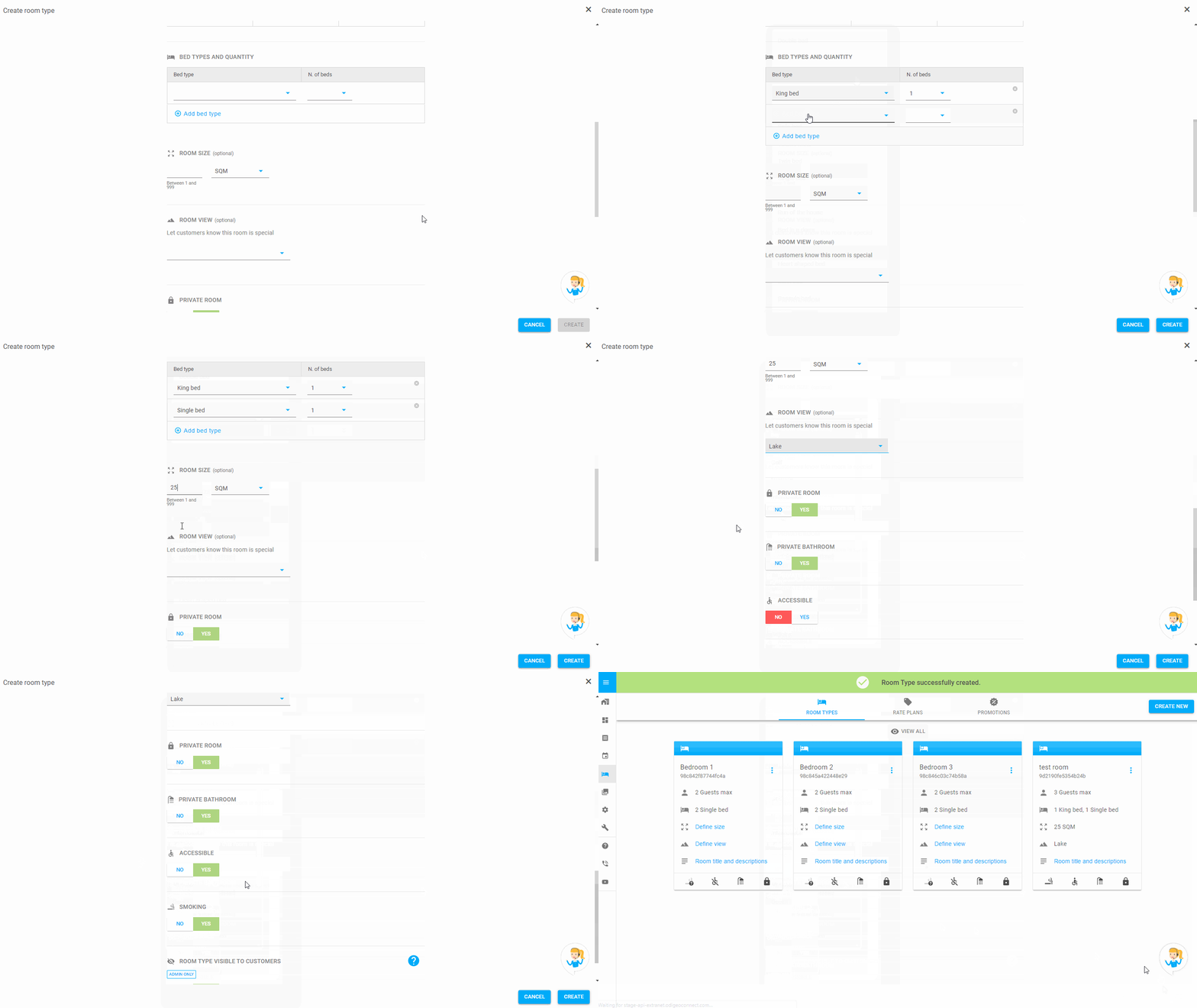
In the Rooms & Rates section, click on “Create new” and then “Create room type”. Name the room and set the maximum occupancy. In the advanced options, you can set the occupancy for children and infants as well.
You will also be able to set the bed types, room size (optional) and the room view (optional). You can specify if the room or the bathroom are private, accessible and smoking free.
Once created, you will see the overview of all your room types and will be able to edit any of them by clicking on the 3 dots in the upper right corner of the card.
RATE PLANS
In the Rooms & Rates section, click on “CREATE NEW” and then “Create rate plan”. Name the rate plan and set the meal plan. We offer a non-refundable cancellation policy on all package deals. You can also deselect room types that you don’t want to sell with this rate plan.
Once created, you will see the overview of all your rate plans and will be able to edit any of them by clicking on the 3 dots in the upper right corner of the card.
PROMOTIONS
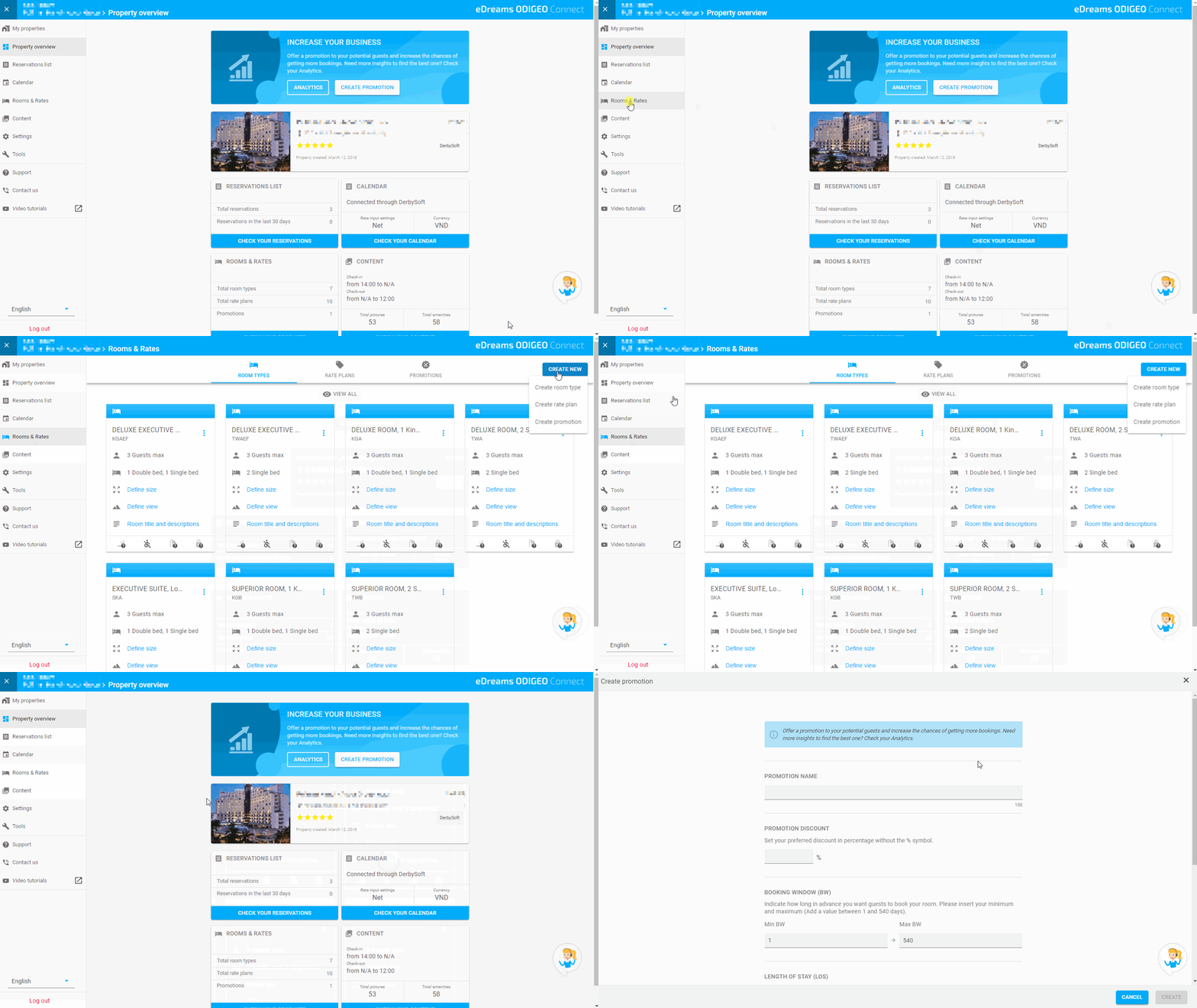
Attracting potential guests is easier than ever. In the Rooms & Rates section, click on “CREATE NEW” and then “Create promotion”. You can also click on “Create promotion” in the Property Overview.
Fill in the name, discount, booking window and length of stay of your promotion. You can optionally customize specific booking dates, stay dates, rate plans, markets and devices.
You can review your promotions in the “Promotions” tab of the Rooms & Rates section. If you have many, you can also filter by activity or expiration status and edit each promotion.
PICTURES
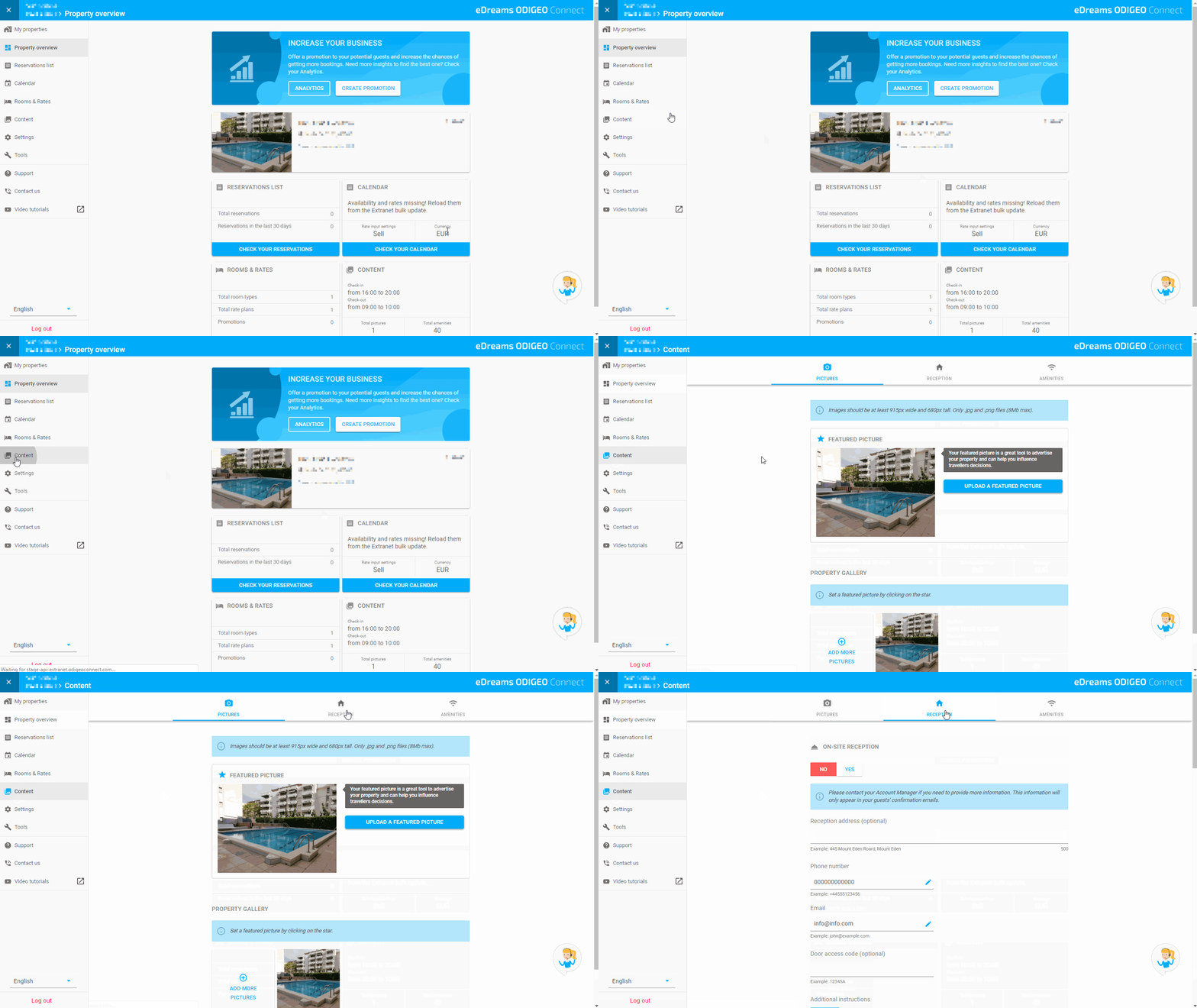
In the Content section, click on the Pictures tab and then on “ADD MORE PICTURES”. You can upload one or more files. Next to the file name, you can see an icon stating if the upload was successful or had an error.
You can choose any of your pictures to be the featured picture of your property (the one guests will see first) by clicking on the star icon below it, or delete the picture by clicking on the bin icon.
You can relate the photos of your property to the corresponding types of room by clicking on the link icon below the picture or directly on the room picture. We invite you to proceed accordingly to show more accurate information to our guests.
RECEPTION
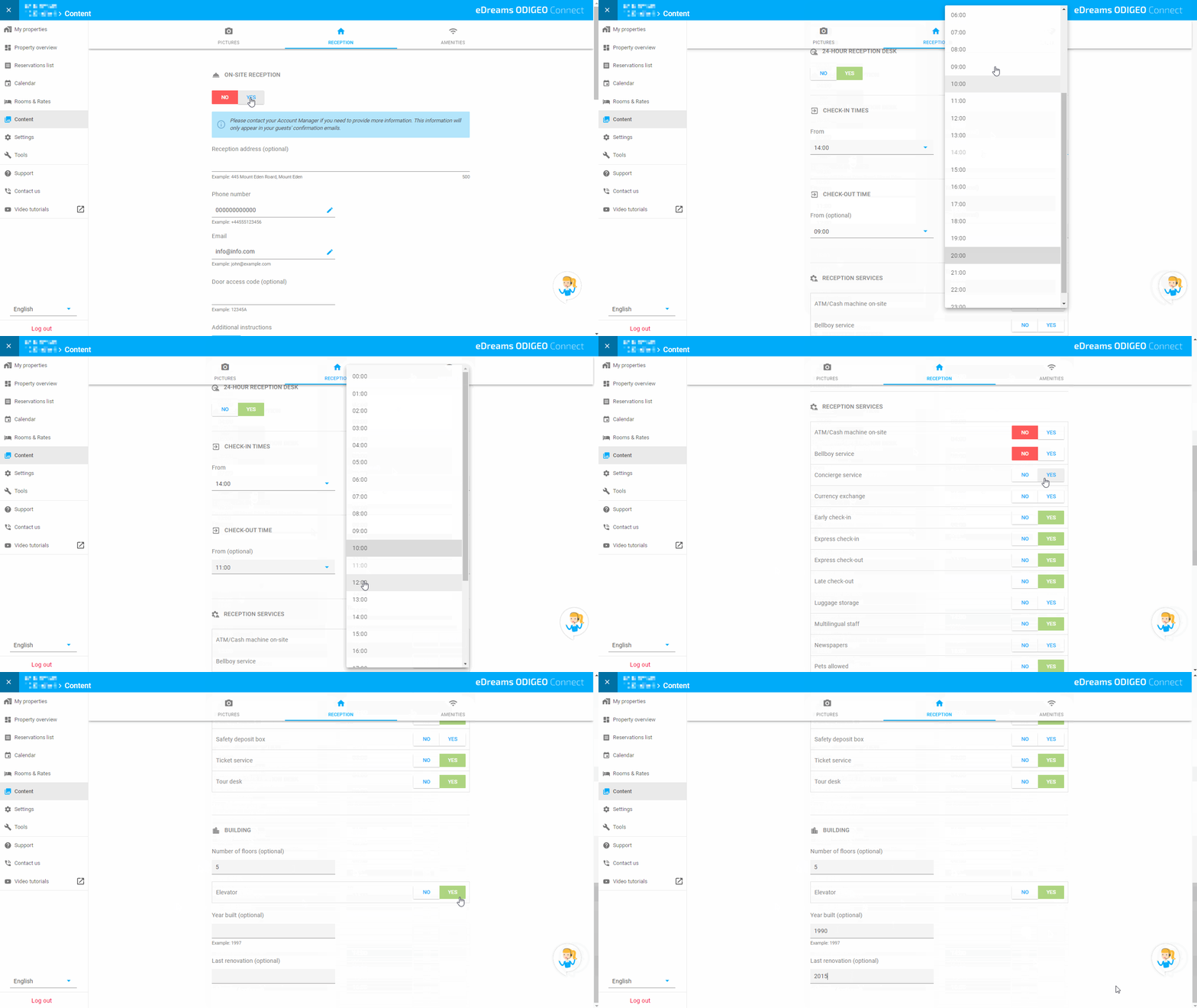
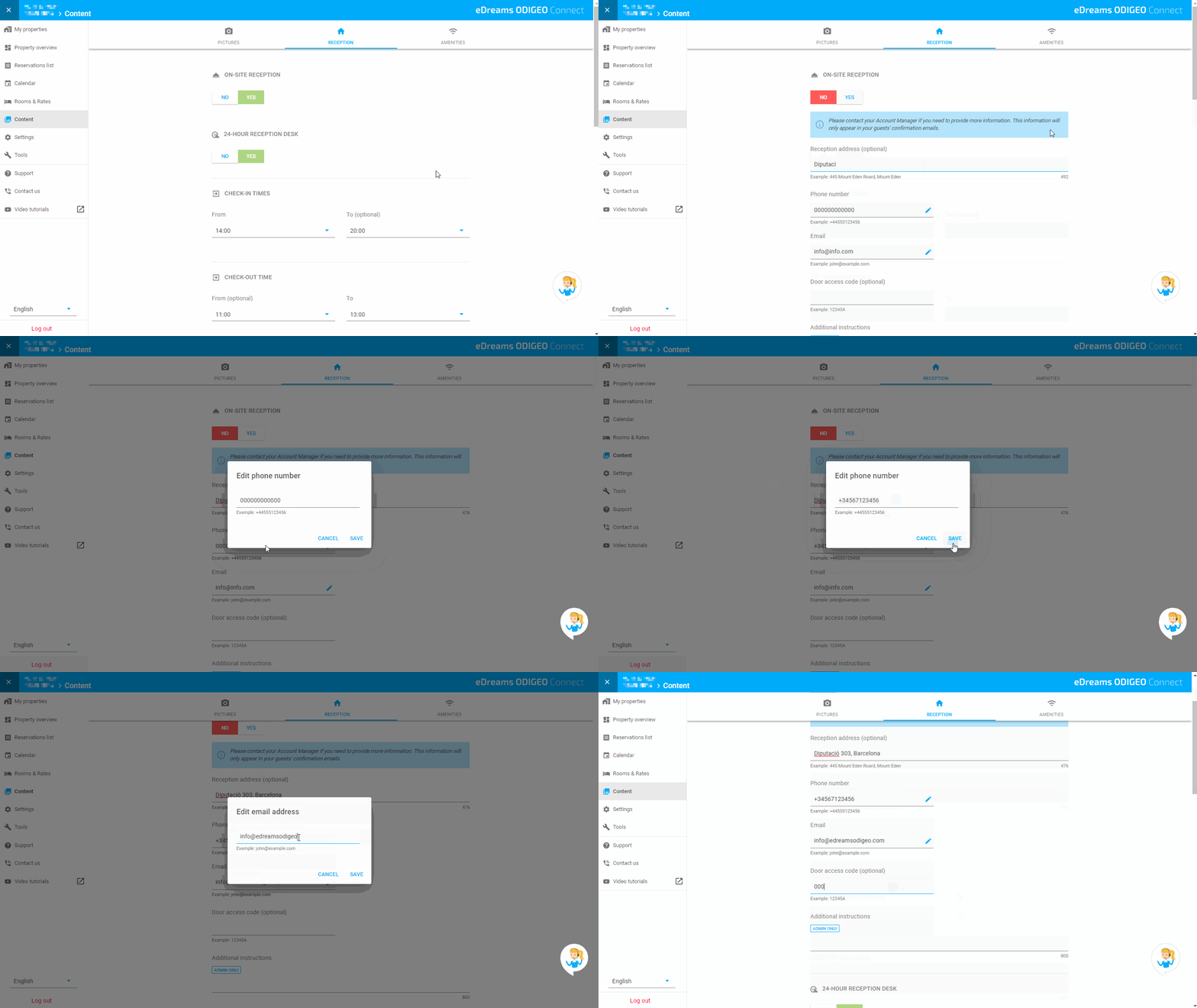
In the Content section, click on the Reception tab and you will be able to fill in information about your reception, or additional contact details if you don’t have one. This way guests will be informed before their arrival.
If you have an on-site reception, you will be able to specify the service hours, check-in and check-out times, as well as the available services. Optionally, you can also provide details on your building like number of floors, elevator, as well as last renovation dates.
If you don’t have an on-site reception or it is not in your building, you can list a reception address, phone number, email and door access code. Guests will want to have this information before arriving to organize their check-in at best.
AMENITIES
In the Content section, click on the Amenities tab and you will be able to select all the amenities and services that your property offers. This is particularly useful when guests filter their search. Be sure to show up!
To make the usage easier, you’ll find the amenities listed by categories, and you can mark the ones that your property offers. Be sure not to forget any and keep this section constantly up to date.
CHAT
Our chat feature is on its way. In the meantime, if you have any questions, you can send us a message by filling in your details. We will promptly get in touch with you to help you solve your issues.